I have VirtualBox installed on
Host: Windows XP
Guest: CentOS 6.3.
I tried to make my Guest OS to work with Internet via broadband.
Finally I got it worked. See image below for graphical settings. Enjoy!
Showing posts with label Windows. Show all posts
Thursday, July 4, 2013
Tuesday, May 14, 2013
Host File on Windows XP
If you want to create a short name for a computer IP or a router IP under Windows XP, this can be done by editing hosts file located in C:\Windows\system32\driver\etc. This is useful when we have to login to a computer without typing the IP address. Example below is my configuration for my router and remote computer.
The results:
The results:
Saturday, May 11, 2013
Paste into Command Prompt
How to paste a copied text into Command Prompt window?
1) Open a Command Prompt window
2) Press Alt + Space Bar (simultaneously)
3) Go to Edit > Paste
1) Open a Command Prompt window
2) Press Alt + Space Bar (simultaneously)
3) Go to Edit > Paste
Wednesday, April 17, 2013
Sunday, October 14, 2012
Remote Desktop Configuration
1) Right click on My Computer > Properties > Remote:
* Remote Assistant
* Remote Desktop
2) Control Panel > Windows Firewall > Exception:
* Remote Desktop
3) Control Panel > Administrative Tools > Local Security Policy > Local Policy > Security Option:
* Accounts: Limit local account use of blank password to console logon only: Disable
4) Share different workgroup:
Computer A (212.0.7.149) Computer B (212.0.7.55)
C:\Doc & Settings\root\Desktop My Comp > Tools > Map Network Drive:
(share folder with access permission) Drive: K
To access folder: \\212.0.7.149\Desktop
* Remote Assistant
* Remote Desktop
2) Control Panel > Windows Firewall > Exception:
* Remote Desktop
3) Control Panel > Administrative Tools > Local Security Policy > Local Policy > Security Option:
* Accounts: Limit local account use of blank password to console logon only: Disable
4) Share different workgroup:
Computer A (212.0.7.149) Computer B (212.0.7.55)
C:\Doc & Settings\root\Desktop My Comp > Tools > Map Network Drive:
(share folder with access permission) Drive: K
To access folder: \\212.0.7.149\Desktop
Install Dual Boot OS (Win XP + Linux)
Masalah
To install dual boot operation system with Win XP as default logon with CentOS Linux
Penyelesaian
1) Create 2 partitions
2) Install Win XP first on partition 1
3) Install CentOS on partition 2 and configure boot loader Linux to set default boot to Win XP.
Types of boot loader:
a) LILO - /etc/lilo.conf | /sbin/lilo -v -v
b) GRUB - /boot/grub/grub.conf
To install dual boot operation system with Win XP as default logon with CentOS Linux
Penyelesaian
1) Create 2 partitions
2) Install Win XP first on partition 1
3) Install CentOS on partition 2 and configure boot loader Linux to set default boot to Win XP.
Types of boot loader:
a) LILO - /etc/lilo.conf | /sbin/lilo -v -v
b) GRUB - /boot/grub/grub.conf
Sunday, December 18, 2011
Error Ketika Rename File
Masalah:
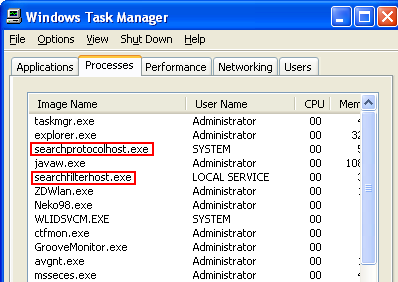
Error ketika rename sesuatu file. Contoh seperti di bawah. Sedangkan tiada player atau application yang berkaitan dibuka.
Penyelesaian:
Buka Task Manager > Cari process seperti yang dibulat merah di bawah > kill process tersebut. Kemudian cuba rename semula file tersebut. Selamat mencuba.
Error ketika rename sesuatu file. Contoh seperti di bawah. Sedangkan tiada player atau application yang berkaitan dibuka.
Penyelesaian:
Buka Task Manager > Cari process seperti yang dibulat merah di bawah > kill process tersebut. Kemudian cuba rename semula file tersebut. Selamat mencuba.
Tuesday, December 6, 2011
Dh Share Folder, Tp xleh Nk Access Pd Remote Computer
Ringkasan:
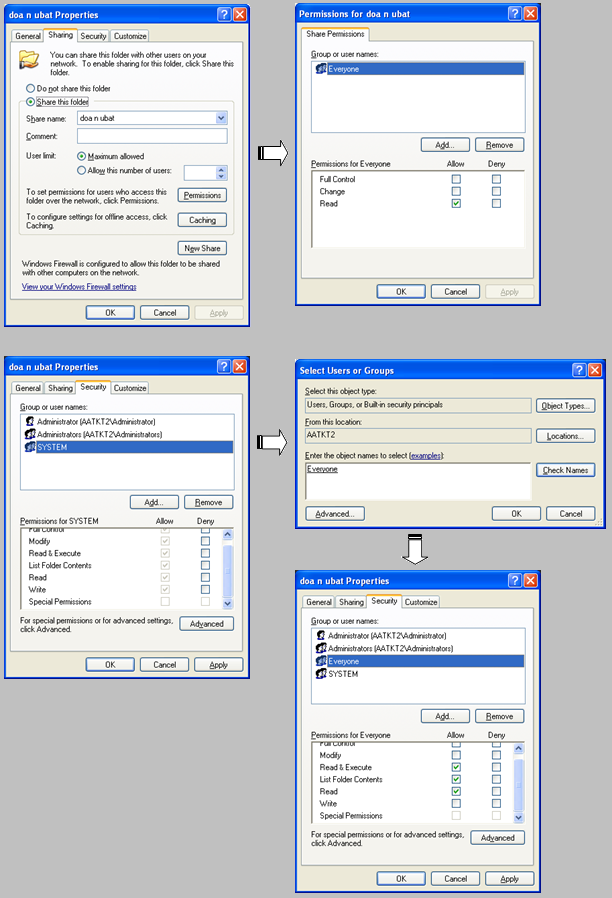
Jika right click pd folder > Properties, pd tab Sharing > Permissions, access telah diberi kepada Everyone; tapi masih lagi problem access folder tersebut pd remote komputer.
Penyelesaian:
Lihat pd tab Security, perhatikan sama ada Everyone wujud dlm list. Biasanya tidak utk kes seperti ini. Jadi add Everyone ke dlm list. Add > type: Everyone > Check Names > OKFriday, December 2, 2011
Download the Undownloadable File
Kekadang anda view PDF file di website tapi xde option utk save file tersebut ke komputer. Ape penyelesaiannya? Download wget dan save ke C:\ (mengikut pilihan anda). Next:
1) Start > Run > cmd [ENTER]
2) cd c:\ [ENTER]
3) wget www.somewebsite.com/file.pdf
Skang, file.pdf di atas akan disimpan ke dlm C: drive anda. Gunakan wget sebagai alternatif download dlm komputer anda.
1) Start > Run > cmd [ENTER]
2) cd c:\ [ENTER]
3) wget www.somewebsite.com/file.pdf
Skang, file.pdf di atas akan disimpan ke dlm C: drive anda. Gunakan wget sebagai alternatif download dlm komputer anda.
Wednesday, July 13, 2011
8GB Kingstone Pendrive
Baru je beli 8GB Kingstone Pendrive dkt PC fair dgn harga RM30 pi xleh pakai. Masa copy file, error "disk protected" appeared. Lepas low level format pendrive tu, lagi tiga suku jadinya. Try search kt tenet, rupanya banyak gak complaint dr world wide tentang keburukan Kingstone ni. Jd x berapa elok la sangat jenama ni untuk sape2 yg ingin beli jenama ni.
ref: www.killdisk.com/downloadfree.htm
ref: www.fixya.com/support/t345484-format_write_protect_usb_drive
ref: www.killdisk.com/downloadfree.htm
ref: www.fixya.com/support/t345484-format_write_protect_usb_drive
Saturday, May 28, 2011
Sunday, November 29, 2009
GetCurrentImage failed, hr = 8000ffff
Jika error "GetCurrentImage failed, hr = 8000ffff" appear ketika anda try capture image menggunakan Media Player Classic (shortcut Ctrl+I), try solution berikut:
1) View >> Options
2) set output as VMR 9(renderless)
kalo x jd gak, try:
RealMedia Video as DirectX9
QuickTime Video as DirectX9
3) Siap. Close n restart balik MPC.
Selamat mencuba..
1) View >> Options
2) set output as VMR 9(renderless)
kalo x jd gak, try:
RealMedia Video as DirectX9
QuickTime Video as DirectX9
3) Siap. Close n restart balik MPC.
Selamat mencuba..
Friday, August 22, 2008
Bandwidth Tuning
This is mainly to adjust the bandwidth limit of your computer (Windows XP Pro & Windows Server 2003) to unlimited.
1. Start > Run > gpedit.msc > OK (to open Group Policy Editor)
2. Computer Configuration > Administrative Templates > Network > QoS Packet Scheduler > Limit Reservable Bandwidth: Enable = 0 %
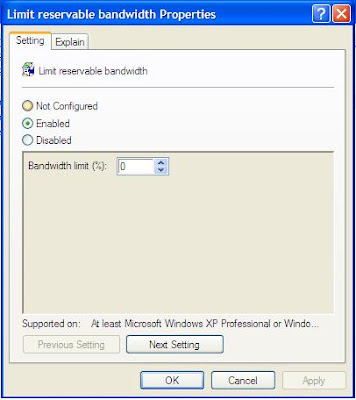
Determines the percentage of connection bandwidth that the system can reserve. This value limits the combined bandwidth reservations of all programs running on the system.
By default, the Packet Scheduler limits the system to 20 percent of the bandwidth of a connection, but you can use this setting to override the default.
If you enable this setting, you can use the "Bandwidth limit" box to adjust the amount of bandwidth the system can reserve.
If you disable this setting or do not configure it, the system uses the default value of 20 percent of the connection.
Important: If a bandwidth limit is set for a particular network adapter in the registry, this setting is ignored when configuring that network adapter.
l
1. Start > Run > gpedit.msc > OK (to open Group Policy Editor)
2. Computer Configuration > Administrative Templates > Network > QoS Packet Scheduler > Limit Reservable Bandwidth: Enable = 0 %
By default, the Packet Scheduler limits the system to 20 percent of the bandwidth of a connection, but you can use this setting to override the default.
If you enable this setting, you can use the "Bandwidth limit" box to adjust the amount of bandwidth the system can reserve.
If you disable this setting or do not configure it, the system uses the default value of 20 percent of the connection.
Important: If a bandwidth limit is set for a particular network adapter in the registry, this setting is ignored when configuring that network adapter.
l
Subscribe to:
Posts (Atom)